LOGRI.GROUP

LOGRI · LOGRI overview

How to use LOGRI.GROUP: Radar, HOLD, Drops and GameFi

The homepage maps the available areas: learning about trading, researching coins, early activities, crypto games or a personal action plan. Choose the task you need.

Checked against interface and code on 26 October 2026

Start here

Read steps 1–4, then open the working section. Return to the explanations below whenever you encounter an unfamiliar field.

What to do and what you get

  1. Step 1 of 4

    Choose your task

    Choose an area on the homepage. Open section takes you to the tool or catalog; How to use opens this guide.

  2. Step 2 of 4

    Start learning about trading

    For trading, read the free beginner guide, then open Radar and the guide for the tab you need.

  3. Step 3 of 4

    Open a specific card

    In HOLD, Drops or GameFi, select a coin, activity or game to obtain its terms and sources rather than a general promise.

  4. Step 4 of 4

    Check a resource before obtaining it

    Before getting a resource, check language, contents and price. The free PDF, 30-day practice and abridged book are separate products.

Where to go for your task

Screen map

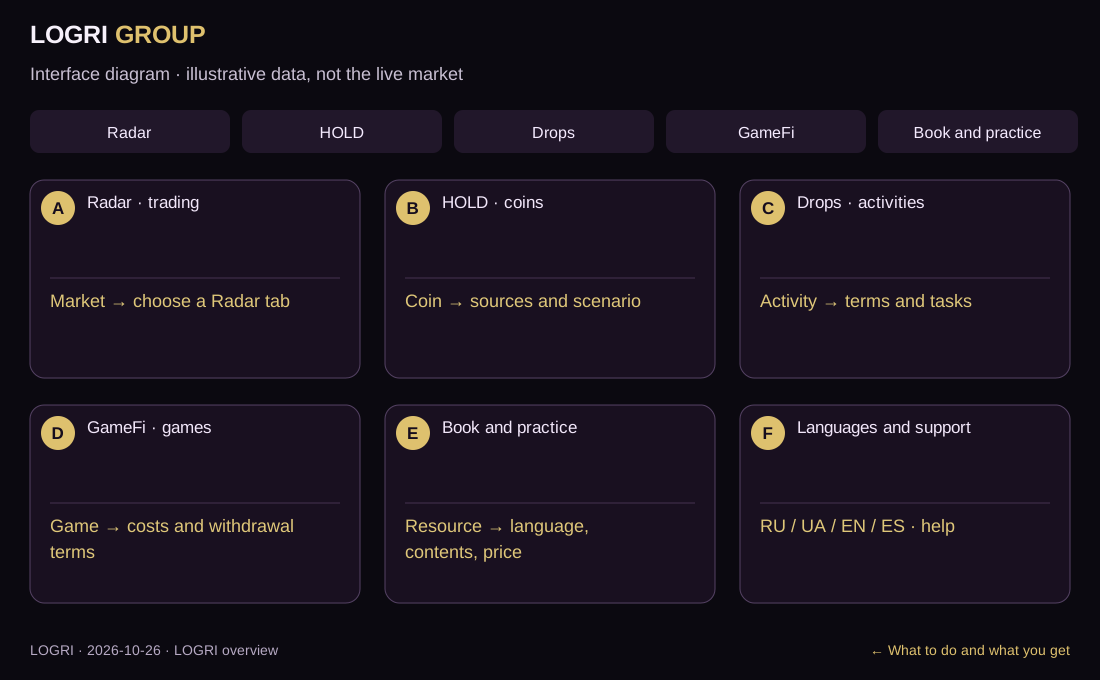
A–F identify areas of this learning diagram, not button numbers or a sequence of actions. Select an area to jump to its explanation below. Working panels may stack vertically on a phone.

Interface diagram · illustrative data, not the live market
Enlarge diagram here

Scroll the enlarged diagram horizontally. Select this heading again to collapse it. All explanations stay on this page.

LOGRI overview: Interface diagram · illustrative data, not the live market
  1. A · Radar · trading
  2. B · HOLD · coins
  3. C · Drops · activities
  4. D · GameFi · games
  5. E · Book and practice
  6. F · Languages and support

What each area contains

D

GameFi · games

For crypto games, open GameFi and a game card. Read platform, starting costs and withdrawal terms. Project links lead outside LOGRI; return with the browser tab or Back.

↑ Back to the A–F diagram

What each parameter means

On screenHow to read and use it
Radar · SignalsTechnical setups, states, chart, entry, SL and TP.
Radar · Movements12-hour gainers and losers, venue quotes and scenarios.
Radar · PositionsPrice, OI, volume and funding: market data, not your personal trades.
Radar · ForecastCombined factors, entry status, history and risk sizing. Model estimates do not promise outcomes.
Radar · News / History / AccessNews connects events with price response; History contains completed model observations; Access provides sign-in and current plans.
HOLD · Coin researchCoin list, sources, evidence coverage, Score and a market-cap scenario calculator. Assumptions produce scenarios, not price predictions.
Drops · Airdrop / Testnet / pointsActivities with costs, dates, difficulty and steps. Points do not guarantee tokens; check the source and wallet first.
GameFi · Crypto gamesGame cards with mechanics, free starts, currencies and withdrawal terms. GameFi means games with crypto elements, not guaranteed income.
Discover yourself · PDF / practice / bookResources for self-reflection and adult-life planning. The 30-day practice is not a trading course. Full and abridged books differ in contents and languages.
RU / UA / EN / ES and supportThe switch changes interface language. Check each product for file and original-video languages. Use the site’s support contacts for access questions.
↑ Back to the A–F diagram

Worked example

For crypto games, open GameFi and a game’s terms. For a coin-price scenario, open HOLD. For market signals, open Radar and the relevant tab guide.

↑ Back to the A–F diagram

Common questions

What do A–F and steps 1–4 mean?

A–F identify areas of this learning diagram, not button numbers or a sequence of actions. Select an area to jump to its explanation below. Working panels may stack vertically on a phone.

What to do and what you get · Screen map
Why did sign-in appear instead of data?

If the working screen requires sign-in, open Access and verify your email. Features depend on your plan; guides remain public. An empty result is not a reason to change rules just to find a trade.

Open sign-in and access
How do I return and what comes next?

All guides are linked at the top and bottom. Use the named section button for practice and Next guide to continue learning.

All guides

Try it in the working screen

The working section’s How to use button brings you back here. If sign-in appears, verify your email and select the required tab again.

↑ Back to the start

Educational guide. Model scores do not guarantee a trade outcome. Reading a guide or viewing Radar does not place orders.

Continue learning